
aixsam.dev / tools / CleanYourTV
CleanYourTV
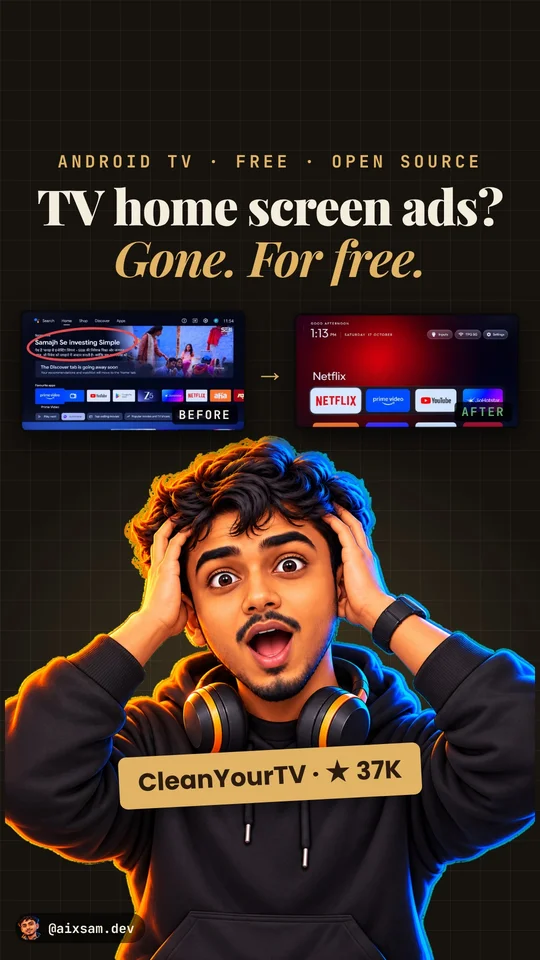
Your Android TV shows ads and "Sponsored" rows before you even reach Netflix. CleanYourTV switches them off, along with the junk apps and tracking, and gives you a clean Apple TV-style home screen. Nothing is deleted, and one command puts it all back. Free, open source, MIT.
What is CleanYourTV?
CleanYourTV is a free, open-source (MIT) project by GitHub user Gathin23 that cleans up Android TV and Google TV sets over Wi-Fi. It switches off the maker's ad services, sponsored rows, tracking and preloaded junk apps, then installs a small home screen that looks like an Apple TV's.
It started when the author's parents' Mi TV showed an ad before they could reach Netflix. He cleaned it with Claude Code, posted the before and after, and within days people had added their own TVs: the README lists 316 tested models from 89 brands. It was the #1 trending repo on GitHub for the week of 19–25 October 2026.
Apps are switched off with Android's own pm disable-user, never uninstalled, and a backup is made first, so one command puts everything back. No root, no cable, and the firmware isn't touched.
What CleanYourTV can do
- Switch off the ads the ad services, sponsored rows and "Discover" nags on the home screen.
- Cut the tracking analytics and telemetry apps that phone home, and preloaded apps you never asked for.
- A new home screen a pitch-black, Apple TV-style home with a dock of your 4 favourite apps and the rest in a grid.
- Keep the useful bits Inputs (HDMI), Wi-Fi and Settings buttons, a clock screensaver, and the remote's Input and YouTube buttons.
- Ask before it touches anything the agent checks which apps you use, and whether to keep the voice assistant, Chromecast and updates.
- Undo in one line
tools/restore.shswitches back on exactly what was switched off and brings the old home screen back.
Will it work on my TV?
- Yes if it runs Android TV or Google TV: Xiaomi and Redmi, OnePlus, TCL, Sony, Hisense, Vu, Philips, Realme, Acer, Thomson and most others. People have tested 316 TV models so far.
- No on Samsung (Tizen) or LG (webOS). They run different systems.
- Half on Amazon Fire TV: it can switch off Amazon's ads and tracking, but Fire OS won't allow a new home screen.
- It cleans the TV, not ads inside apps. YouTube ads stay.
What you need
- Your TV on Wi-Fi, switched on.
- Either an Android phone on the same Wi-Fi (about 5 minutes, no coding) or a Windows, Mac or Linux laptop on the same Wi-Fi with an AI coding agent: Claude Code, Codex or Gemini CLI (about 15 minutes).
- Do it in one sitting: some TVs and boxes cut power to their USB port while debugging is on, so a USB speaker, drive or USB Ethernet adapter goes dead until you switch it off again.
Setup, step by stepcopy each command with the button on the right
Unlock Developer options
On the TV open Settings → Device Preferences → About. Scroll to Build and press OK on it 7 times, until it says you're a developer.
Turn on USB debugging
Go back to Device Preferences → Developer options and turn on USB debugging. If you also see Network debugging or ADB debugging, turn that on too. You don't need a cable; it works over Wi-Fi.
Get the Clean Your TV app
On your Android phone open cleanyour.tv/app and install it. It's a free, open-source app built by a community member (@udhaykumarbala) and linked from the official repo.
Connect, check the plan, clean
Keep the phone on the same Wi-Fi as the TV. The app connects to the TV, shows you a plan of what it will switch off before it does anything, saves a restore point, and only switches apps off, so everything can be put back.
Accept the "Allow USB debugging?" box when it appears on the TV. Then jump to 04 · When you're done.
Get the repo
Install Git if you don't have it, then in a terminal:
git clone https://github.com/Gathin23/cleanyourtv
cd cleanyourtv
Cloning matters: your agent then uses the repo's own scripts, which make the backup and the restore record, instead of writing its own.
Open your AI agent in that folder
With Claude Code, run this inside the
cleanyourtvfolder:claudeCodex or Gemini CLI work the same way.
Paste the prompt
Open PROMPT.md, copy the prompt from the repo, paste it into your agent, and fill in your TV model where it says
<MODEL NAME HERE>. Also tell it you cloned the repo.Don't know the model? It's on the TV under Settings → Device Preferences → About.
Allow your laptop on the TV
The agent finds your TV on the Wi-Fi (or asks for its IP address) and connects. When "Allow USB debugging?" pops up on the TV, select Allow.
Answer its questions
It backs up the TV first, then asks you: which apps you use, which 4 apps go in the dock and in what order, and whether to keep the voice assistant, Chromecast and updates. It asks before switching off anything you might use.
Watch it work
It switches off the ad services, sponsored rows, tracking and preloaded junk, then builds and installs the new home screen, and checks every step with screenshots from your TV. Tip: tell it to go in small batches.
Turn USB debugging off
On the TV go back to Developer options and switch USB debugging (and Network/ADB debugging) off. The new home screen keeps working, and nobody else on your Wi-Fi can connect to the TV.
Keep the backup
Keep the backup folder and the list your agent applied (
examples/<your tv>/debloat.txtor the one it wrote). That's what the restore uses.
How to undo it
On the laptop, from the cleanyourtv folder (use your TV's IP and list):
TV_HOST=192.168.1.50 tools/restore.sh examples/<your tv>/debloat.txtOn a Google TV, add the stock home screen at the end:
TV_HOST=192.168.1.50 tools/restore.sh examples/<your tv>/debloat.txt com.google.android.apps.tv.launcherxOr just ask your agent to "restore my TV". Without a laptop, the TV's own Settings → Apps page can switch any app back on. A factory reset is the very last resort: it brings everything back, but also wipes your apps and accounts.
Heads up: nothing is rooted, flashed or deleted, but switching off something the TV leans on can get it stuck (one Hisense booted to its recovery screen; some Google TVs looped until the setup app was handled). Go in small batches and keep the restore ready. A firmware update can switch a few apps back on; just run it again. It doesn't work on Samsung or LG, and it doesn't remove YouTube ads.
Stuck?
Mac: "No route to host" when connecting
macOS blocks the standard adb tool under Local Network privacy. The repo's own tools/tv.py doesn't use it, so tell your agent to use that instead.
The agent can't connect to the TV
Check both are on the same Wi-Fi and USB debugging is on. Some Google TVs only open the connection through Developer options → Wireless debugging → Pair device with pairing code: give your agent the code and port it shows.
My USB speaker or drive stopped working
Some boxes (the Mi Box S, for one) cut USB power while USB debugging is on. Switch debugging off when you're done and it comes back.
The on-screen keyboard disappeared (Xiaomi)
The TV pointed at a keyboard that isn't installed. Ask your agent to run:
tools/tv.py 'ime set com.google.android.inputmethod.latin/com.android.inputmethod.latin.LatinIME'Google TV keeps restarting or dropping Wi-Fi after the switch
Turn the stock home back on:
tools/tv.py 'pm enable --user 0 com.google.android.apps.tv.launcherx'Then see the repo's Troubleshooting page about the setup app (setupwraith).
Questions people ask
Is CleanYourTV free?
Yes. It's open source under the MIT licence. The laptop way needs an AI coding agent such as Claude Code, which may need its own plan; the phone app is free.
Does it work on Samsung or LG TVs?
No. Samsung uses Tizen and LG uses webOS, not Android. It works on Android TV and Google TV sets, and partly on Amazon Fire TV (ads and tracking off, but no new home screen).
Does it remove YouTube ads?
No. It cleans the TV's own home screen and system apps. Ads inside apps like YouTube come from the app itself and stay.
Can it break my TV?
Nothing is flashed, rooted or deleted, so the firmware is safe. The risk is switching off something the TV needs, which can get it stuck. Go in small batches, keep the backup, and the TV's Settings → Apps page can switch apps back on. A factory reset is the last resort.
Is leaving USB debugging on a security risk?
Your TV only trusts the computer you allowed, but switch USB debugging off when you're done anyway. The new home screen keeps working without it.
Will Netflix, Prime Video and Hotstar still update?
Yes. The Play Store is left alone, so your streaming apps keep updating as usual.
Still stuck?
DM me on Instagram with your TV model, a photo of the error and which step you're on.
DM @aixsamdev